
Connect your Zoho books account with Xflow
Tired of the hassles of collecting international payments? Xflow makes accepting payments from customers worldwide easily without switching between multiple platforms. Streamline your payment process with the Xflow-Zoho Books integration.
To integrate your Zoho Books Account with Xflow, you’ll need an Xflow Account. You can sign up for free if you don’t have an Xflow Account.
Once you have signed up and completed the KYC process, please contact support@xflowpay.com to get the live mode developer key.
To connect your Xflow account with Zoho Books
1. Install Xflow for Zoho Books from the Zoho marketplace.
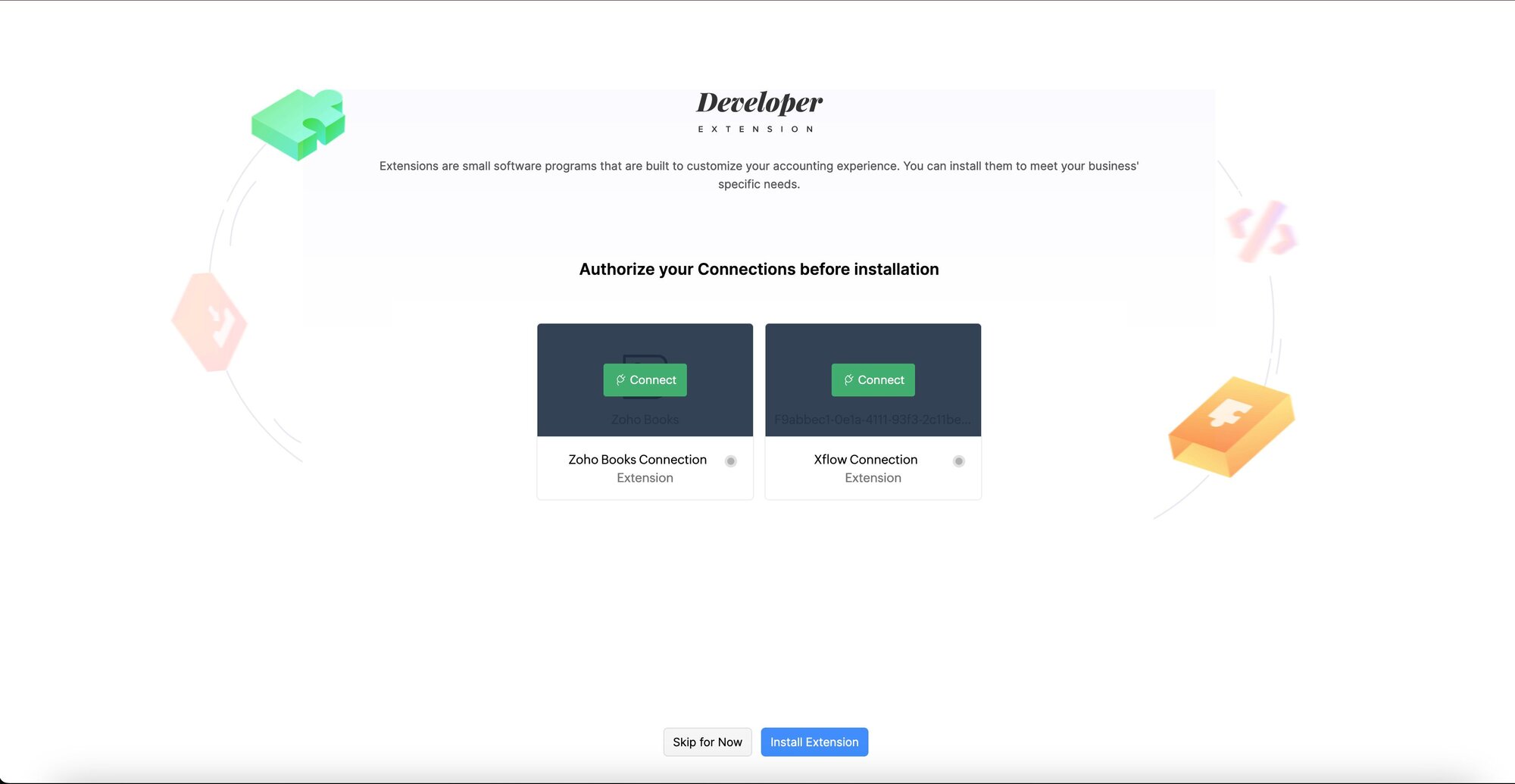
2. Once the extension is installed, authorize Zoho Books connection and Xflow Connection to finish the installation.
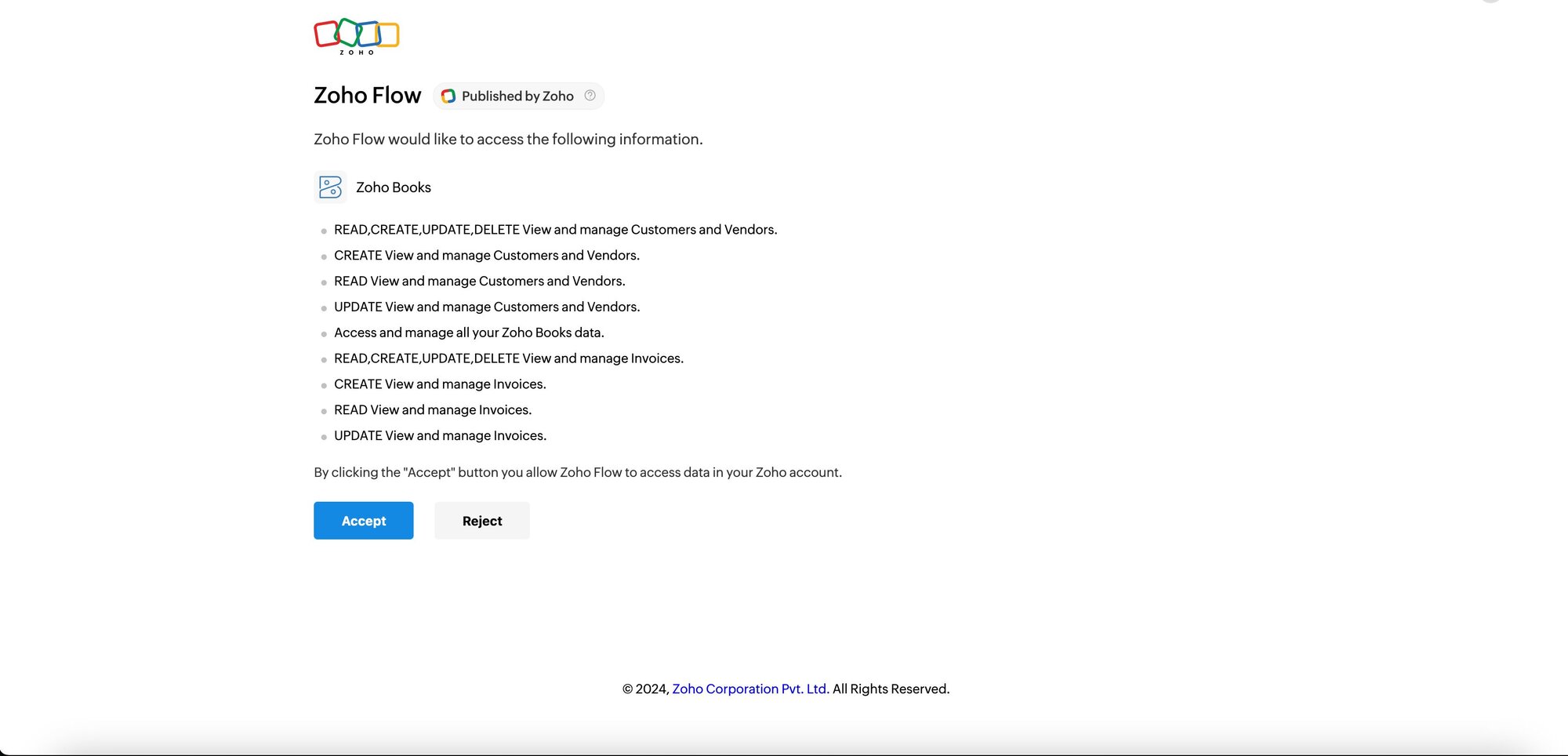
Click on Accept to allow Zoho Flow to access data in your Zoho Account
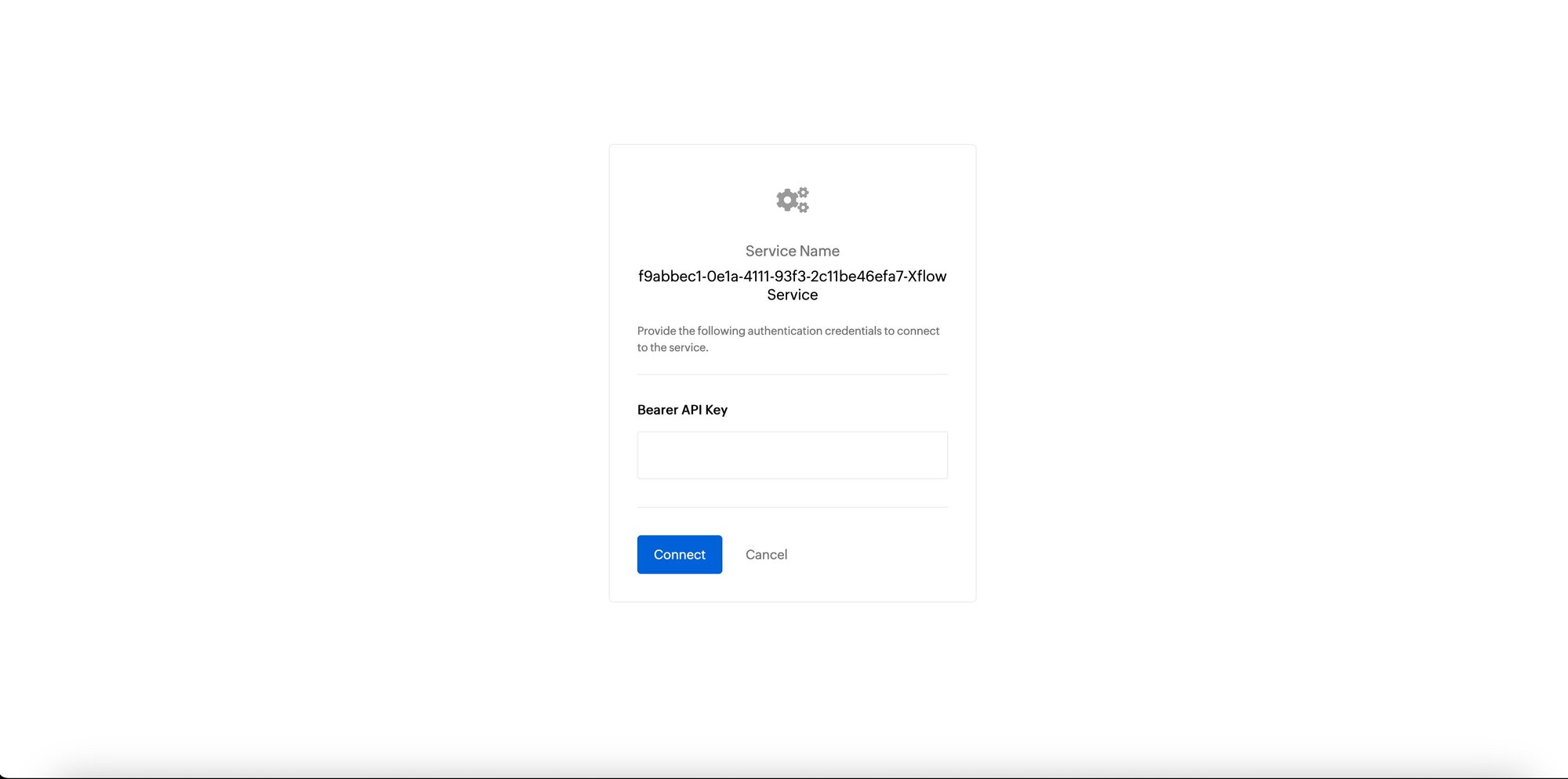
To authorize the Xflow connection, enter the live mode developer key, which you’d have received from Xflow with Bearer in front of it. For example, Bearer sk_live_xxxxx.
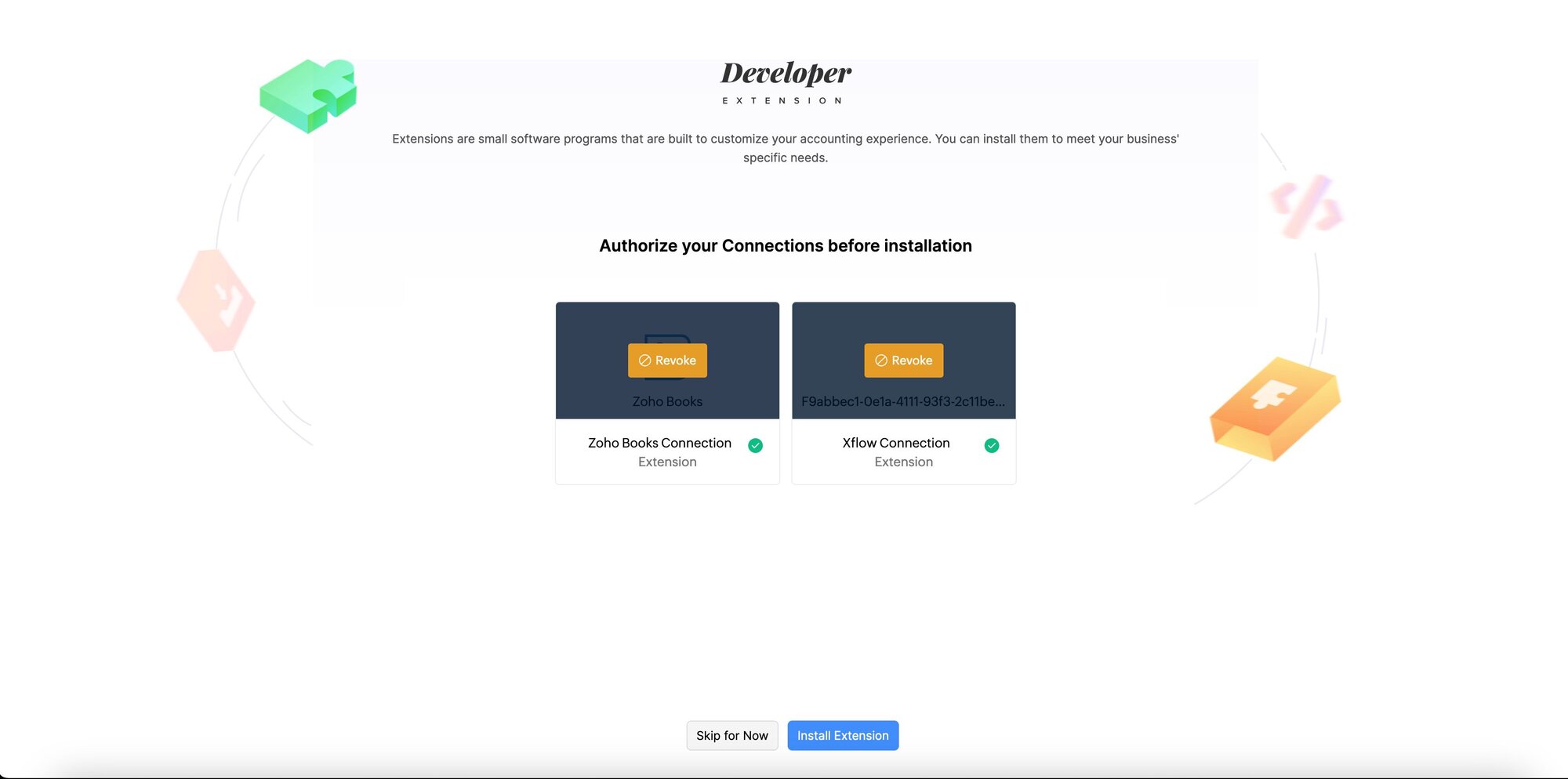
3. Once both connections are authorized, the screen will look like this: Click Install extension to complete your installation.
4. Once the installation is complete, the Xflow for Zoho Books installation will appear in your installed extensions under Integrations & Marketplace > Installed Extensions.
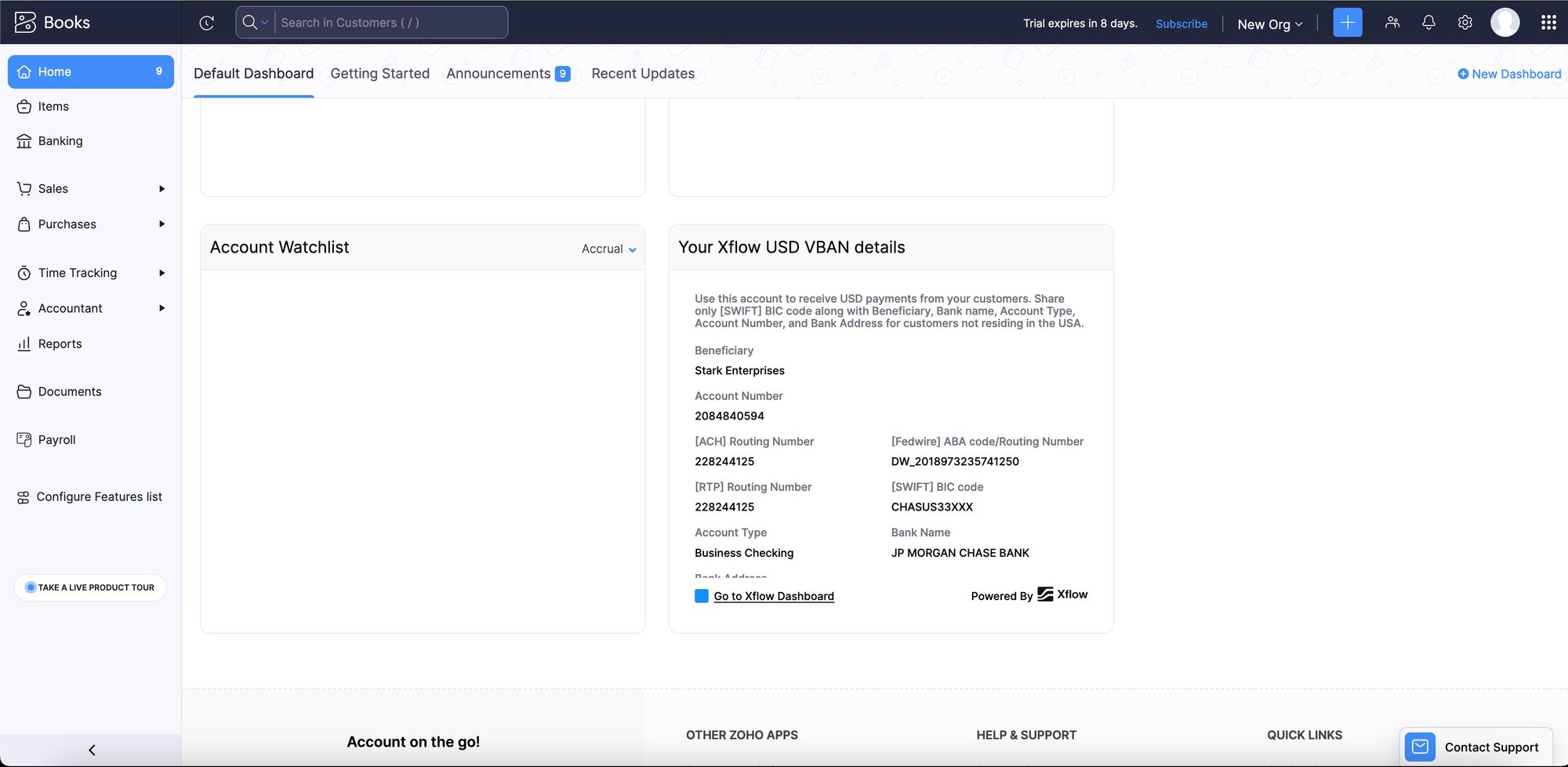
Your USD VBAN details on Zoho Books
Once Xflow for Zoho Books is installed successfully, you can see the bank transfer details provided by Xflow on your Zoho Books homepage. You can share the Xflow Virtual Bank Account Number (VBAN) details with your client to accept payments.
Creating your partner in Xflow from Zoho
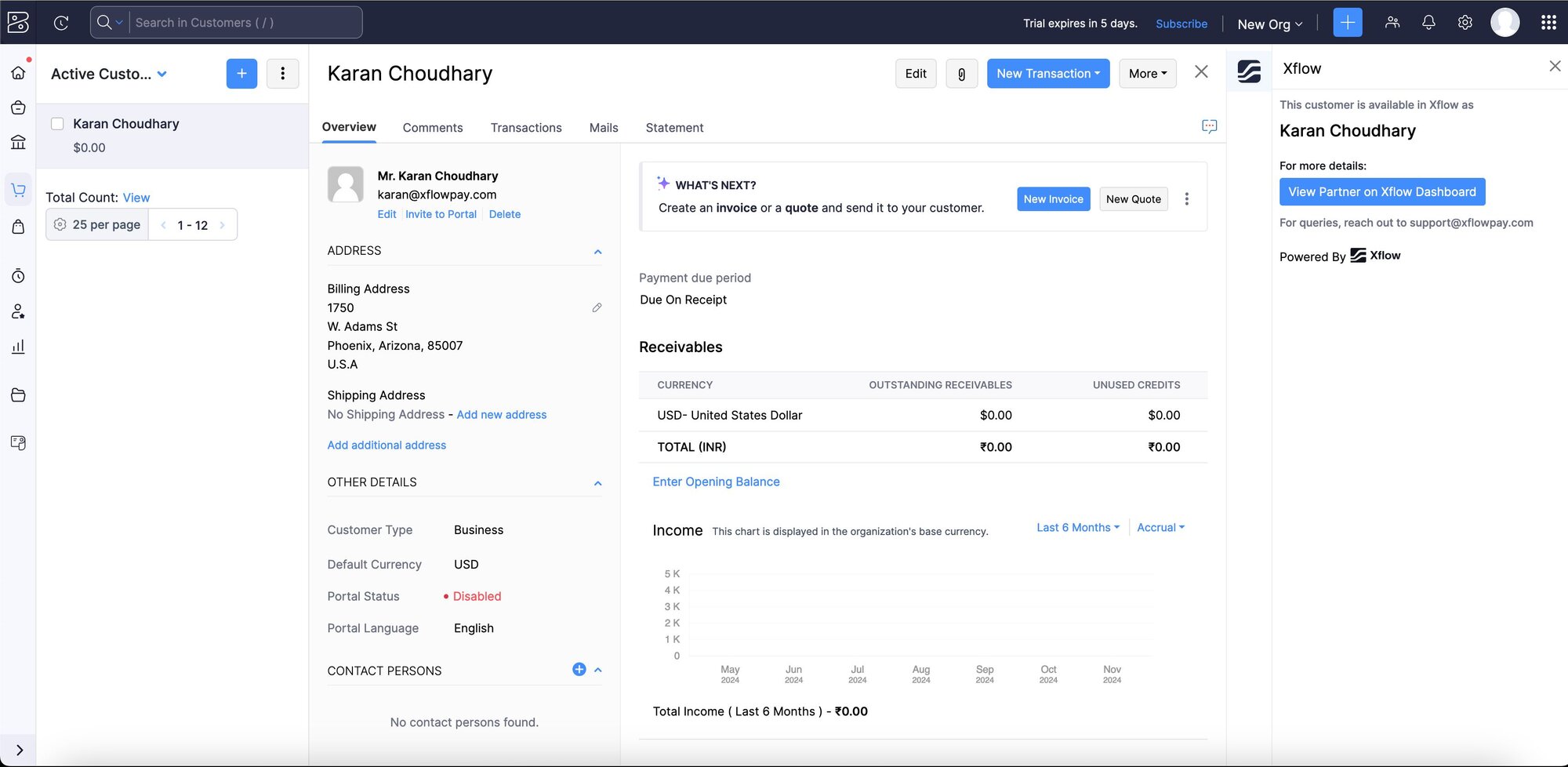
Zoho customers are represented as partners within the Xflow ecosystem. Using our sidebar widget, you can effortlessly create existing customers as partners in Xflow.
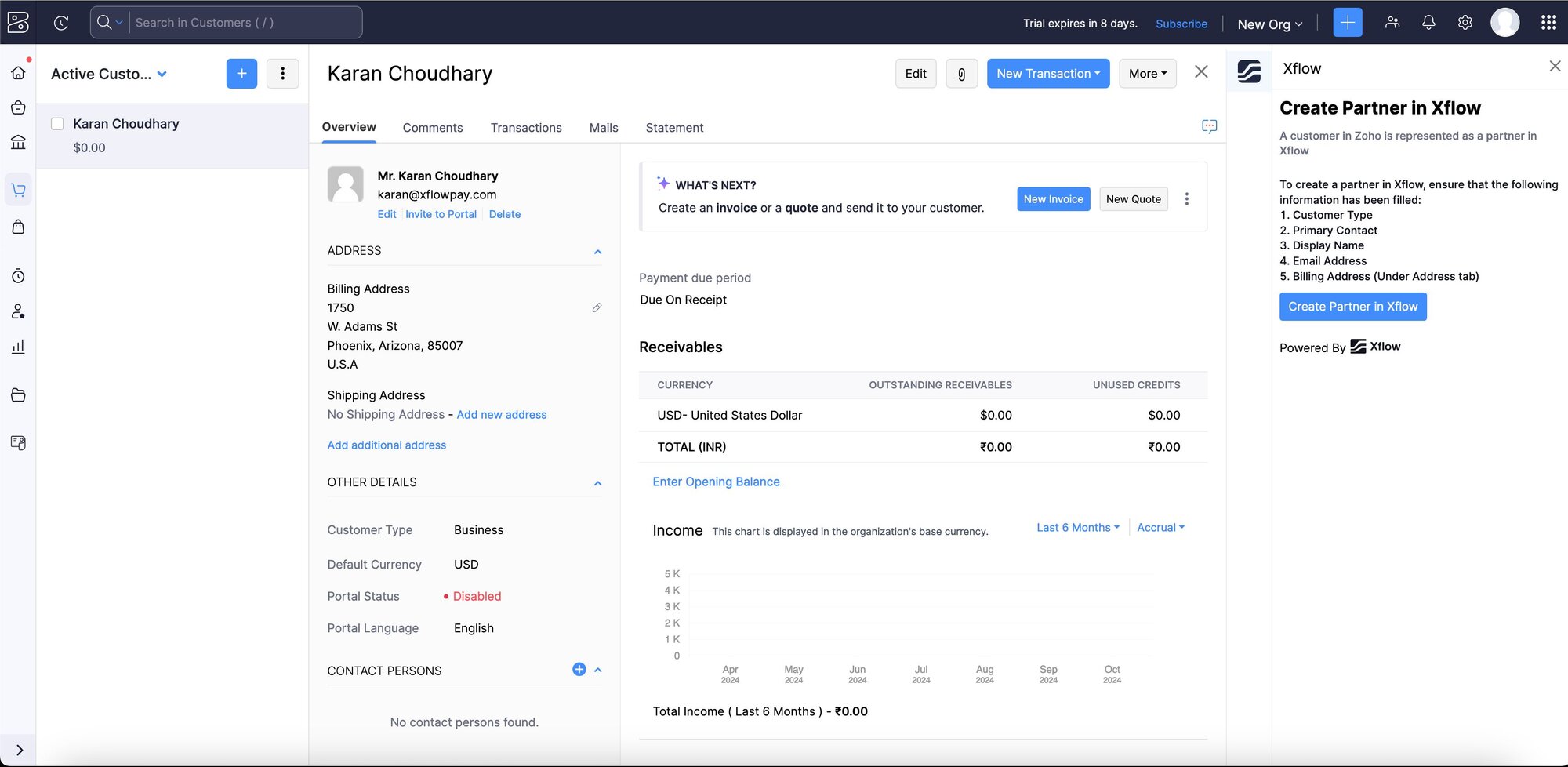
Please note that once a partner is created through Zoho, any updates made to the Zoho customer will not be reflected in the partner's details in Xflow. After a partner is established, Xflow allows updates only to the email address and physical address. For updates to any other fields, please contact support@xflowpay.com.
Reach out to us
If you face any issues with our integration, please contact support@xflowpay.com.